Document Training
Overview
Document Training enables supervised refinement of document extraction by allowing users to review, validate, and correct extracted fields directly against source documents. It aligns extracted headers and line items with exact document locations using a synchronized table and PDF viewer. All corrections are captured as training signals, improving future extraction accuracy for the same context and use case. This reduces downstream automation errors and increases model reliability.
Creating a Training Job
Create a Training Job to begin document training.
Steps:
- Navigate to Document Training → Create Training Job
- Enter Job Name and Description
- Select Context
- Select Use Case
- Click Create
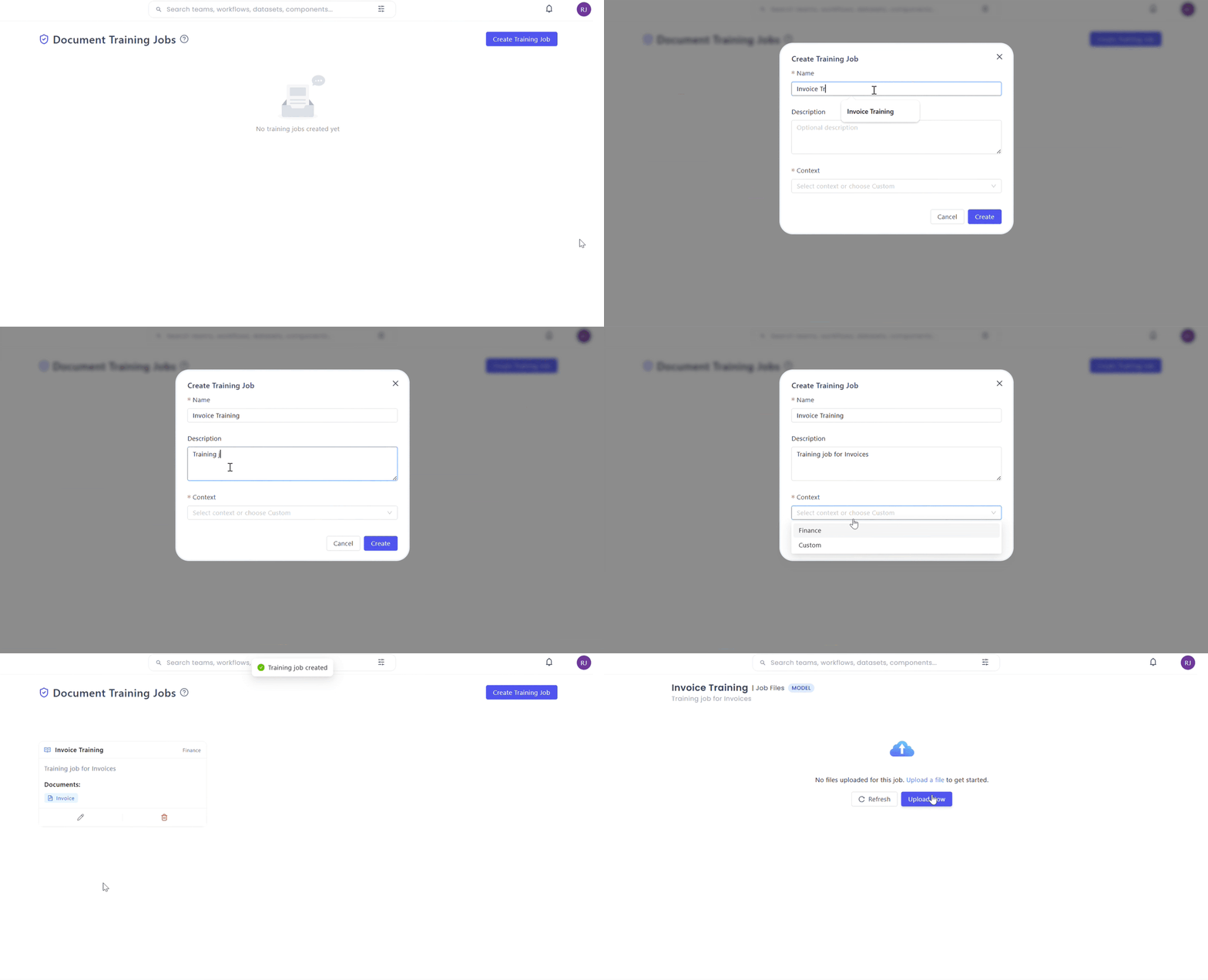
- Job name must be unique
- Context and use case define extraction behavior and learning scope
Uploading Files
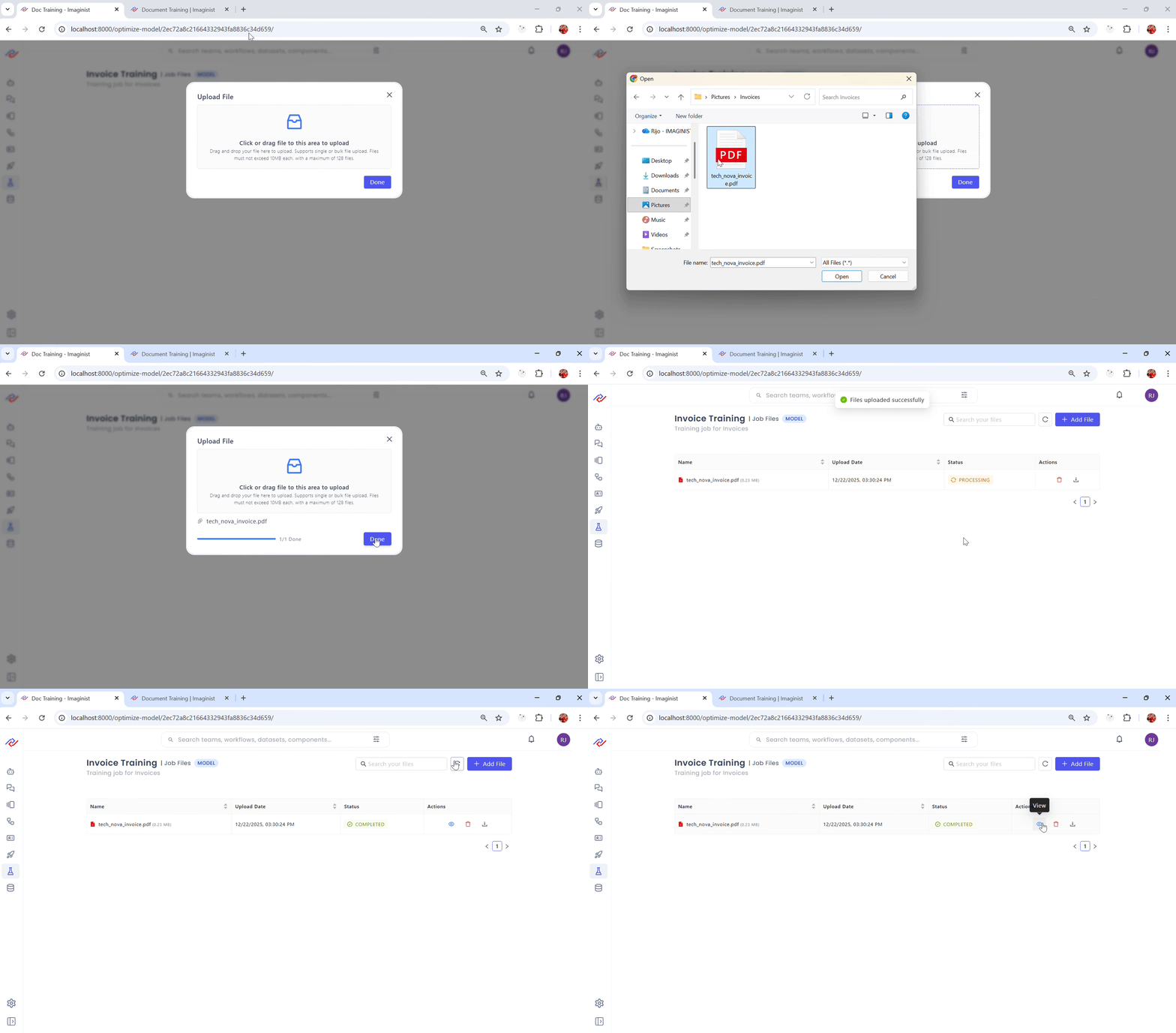
Upload documents after job creation.
Steps:
- Open the training job
- Click Upload File
- Select supported files (PDF, JPG, JPEG, PNG, TIFF, BMP)
- Wait until status becomes Processed
Document Visualizer
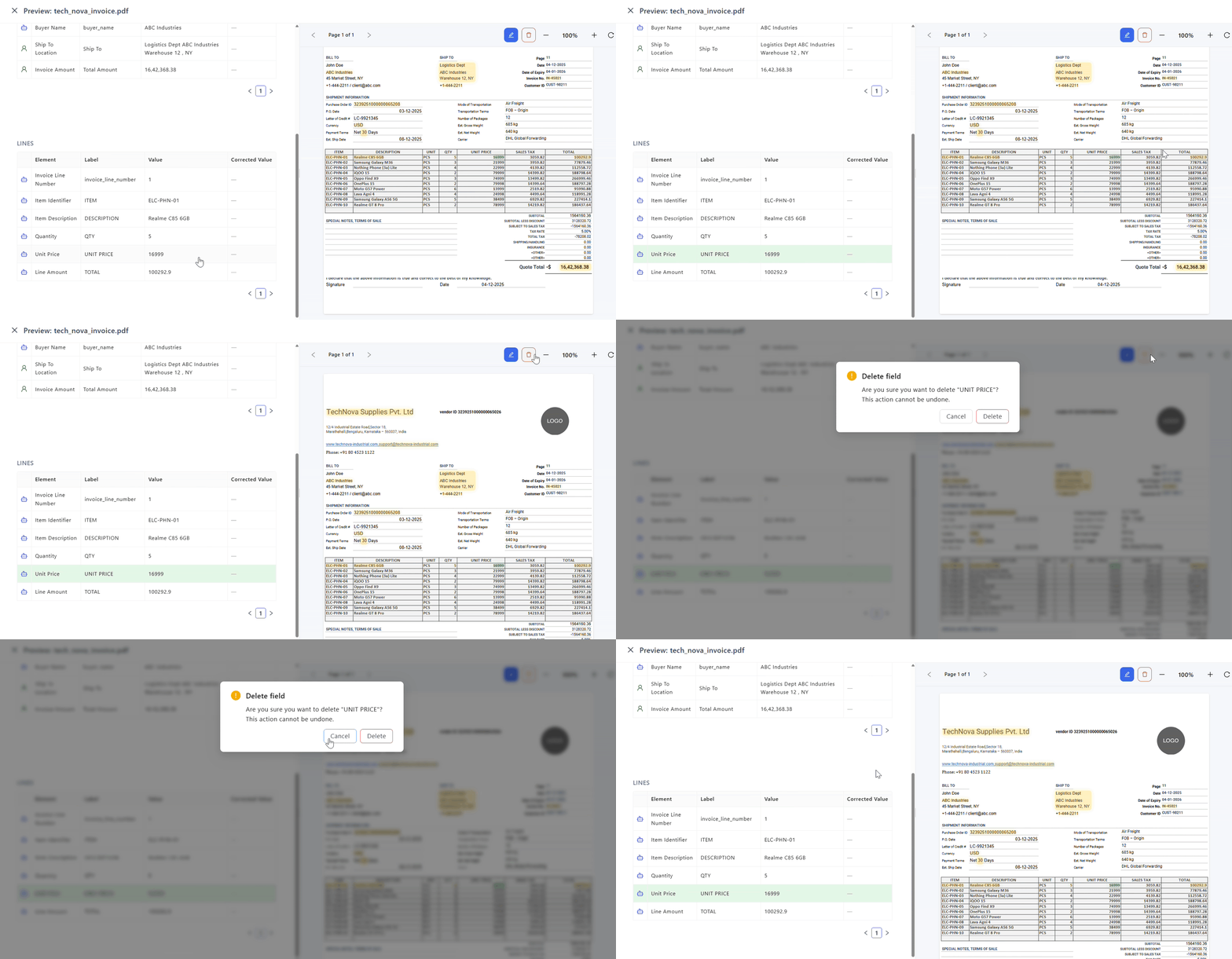
After processing, an eye icon appears next to the file. Selecting it opens the Document Visualizer, a unified workspace for reviewing and correcting extracted data. It consists of two synchronized sections with strict one-to-one mapping between structured data and document regions.
Left Panel: Extraction Tables
Displays structured extraction results grouped by use case–specific tables.
Characteristics:
- Table structure depends on selected use case
- Each table represents a logical data group from extraction configuration
Columns:
- Element – system identifier
- Element Label – readable label
- Value – extracted value
- Corrected Value – user-updated value

Right Panel: PDF Viewer
Displays the source document with extracted regions highlighted.
Interactions:
- Selecting a table row highlights the corresponding PDF region
- Selecting a PDF region highlights the corresponding table row
Adding New Items
Use when required fields are missing.
Steps:
- Enable Add Mode
- Draw bounding box around target content in PDF
- Select Element Type and Label
- Click Add
Result:
- New item appears in extraction table and PDF highlights

Editing Extracted Items
Use when extracted values or locations are incorrect.
Steps:
- Enable Edit Mode
- Select item from table or PDF
- Redraw bounding box if location is incorrect
- Update Value or Label
- Click Save
Result:
- Original value moves to Corrected Value
- PDF highlight updates to new region

Deleting Items
Use when extracted items are invalid or unnecessary.
Steps:
- Select item in table or PDF
- Click Delete
Result:
- Item removed from table and PDF viewer
Summary
Document Training provides a strict visual workflow for validating and correcting extraction results. Direct alignment between structured data and document content ensures precise supervision. Captured corrections continuously improve extraction accuracy, consistency, and downstream automation reliability.