Accessibility Config Component
Overview
Accessibility Config Component controls feature-level visibility across application UI. It determines which tools and sections are exposed to users.
Available only when team type is set to UI.
Purpose
Centralized, no-code control over UI access. Configuration directly impacts:
- Home page visibility
- Agentic Studio Tools section
- Application sidebar navigation
Configurable UI Sections
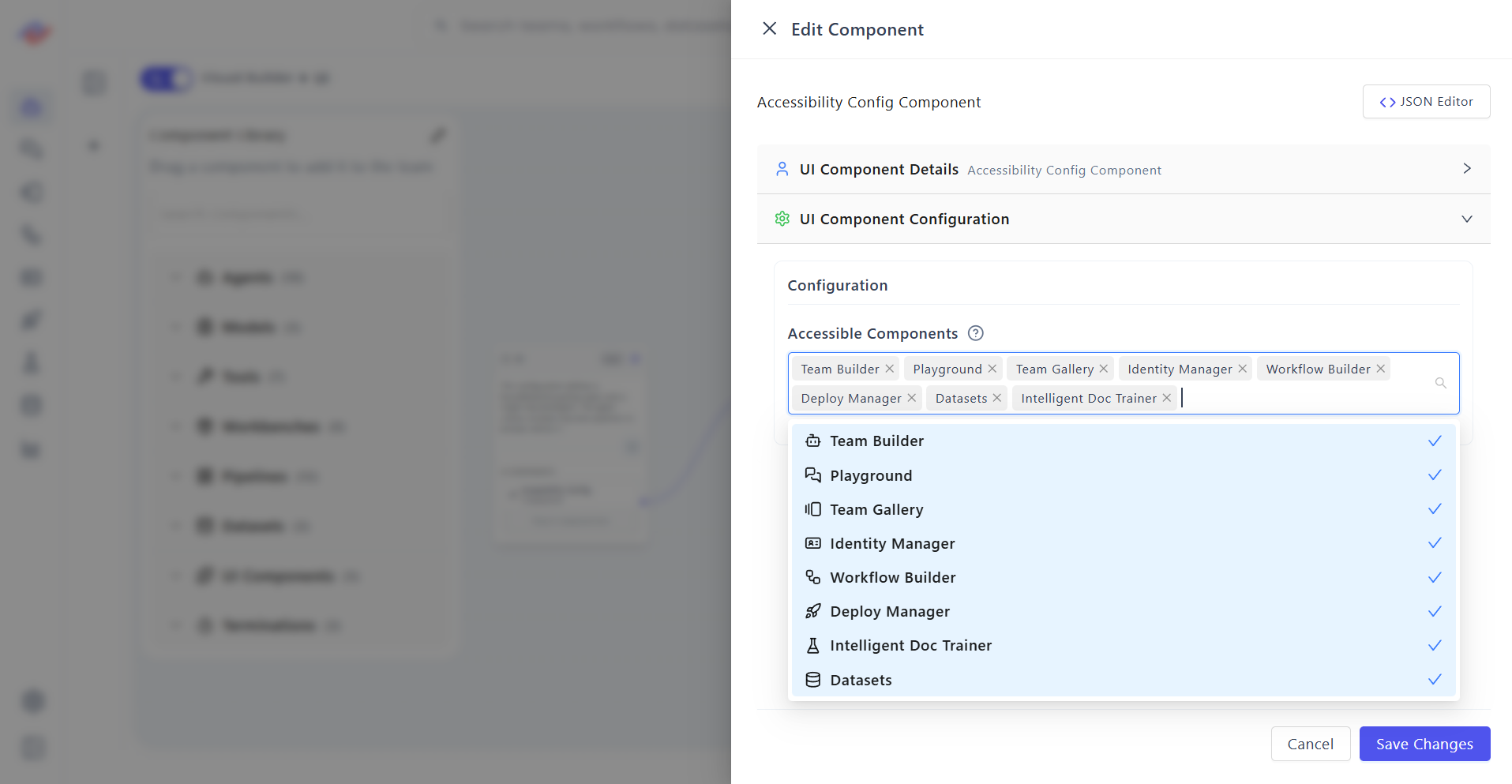
Use this configuration screen to choose which features are enabled in UI.
Selectable sections:
- Team Builder
- Playground
- Team Gallery
- Identity Manager
- Workflow Builder
- Deploy Manager
- Datasets
- Intelligent Doc Trainer
Only selected items become visible and usable.
Behavior After Configuration
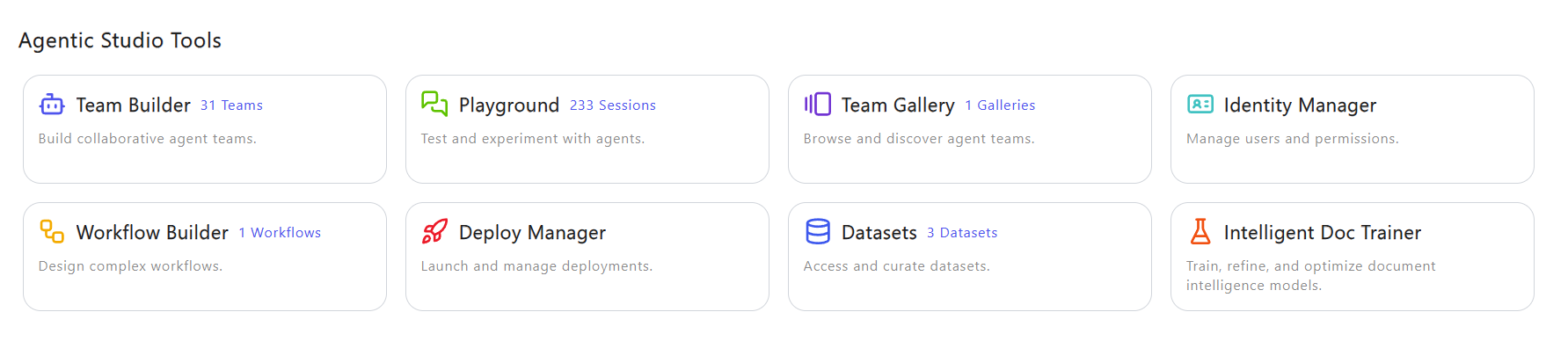
Agentic Studio Tools – Home Page
- Enabled components appear under Agentic Studio Tools
- Disabled components are fully hidden
- Clicking a tool navigates to its respective UI
This ensures users see only permitted capabilities.
Sidebar Behavior
- Sidebar menu updates automatically
- Only enabled sections are listed
- Navigation stays consistent across sessions
Use Cases
- Role-based UI exposure
- Controlled feature rollout
- Simplified interfaces
- Restricted internal tools
- Workspace customization
Capabilities
- Section-level access selection
- Home page tool visibility control
- Sidebar menu management
- No-code configuration
- Instant UI updates
Summary
Accessibility Config Component defines UI-level access by selecting which application sections are visible. Configuration affects both Home page and sidebar, enabling controlled, role-appropriate user experiences without backend changes.