TemplateRenderAgent
Description: An agent used to configure templates with defined mappings for dynamic rendering and automation.
Overview
TemplateRenderAgent is a specialized rendering agent used to configure, map, and render dynamic templates for automation and presentation workflows.
It supports Jinja, HTML, and CSS rendering, with data sourced from pipelines, datasets, or direct input payloads.
This agent enables data-driven document generation, dashboards, and UI-ready outputs.
Create TemplateRenderAgent
Actions
- Open Team Builder
- Ensure team type is set to Agent
- Drag and drop TemplateRenderAgent into the canvas
- Provide a unique agent name (used for orchestration and handoffs)
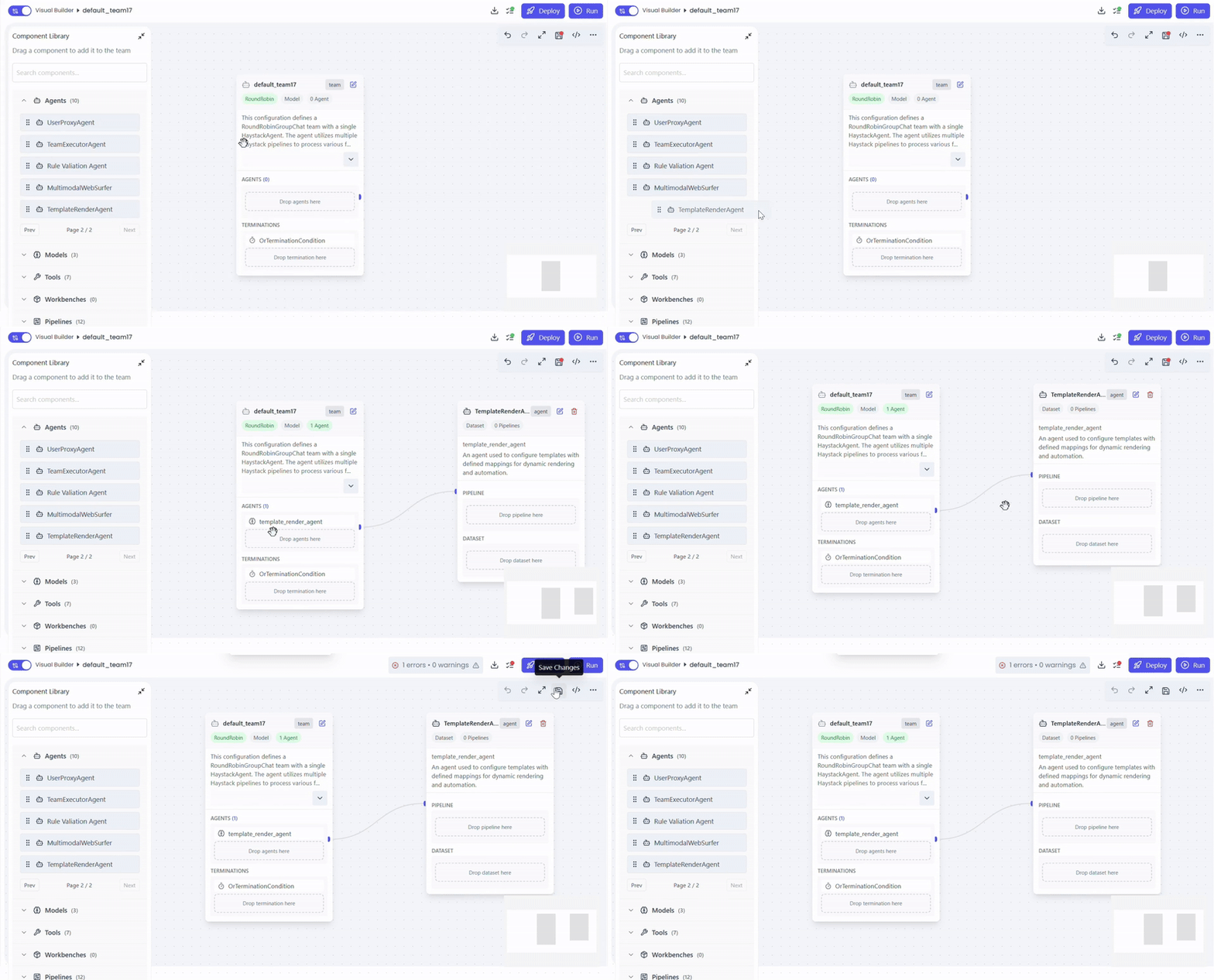
Add & Manage Templates (Code Editor + Visualizer)
In this step, you define, reuse, or manage templates that TemplateRenderAgent will render.
Templates can be:
- Created from scratch
- Selected from predefined templates
- Loaded from previously saved custom templates
Actions
- Open the Configure Template
- Choose a template source from dropdown:
- Predefined template
- Saved custom template
- Blank template (new)
- Edit the template using the Code Writer
- Preview output using the Visualizer
Template Sources
TemplateRenderAgent supports three ways to add a template.
Option 1: Use Predefined Templates
The platform provides ready-to-use templates such as:
- Table Template
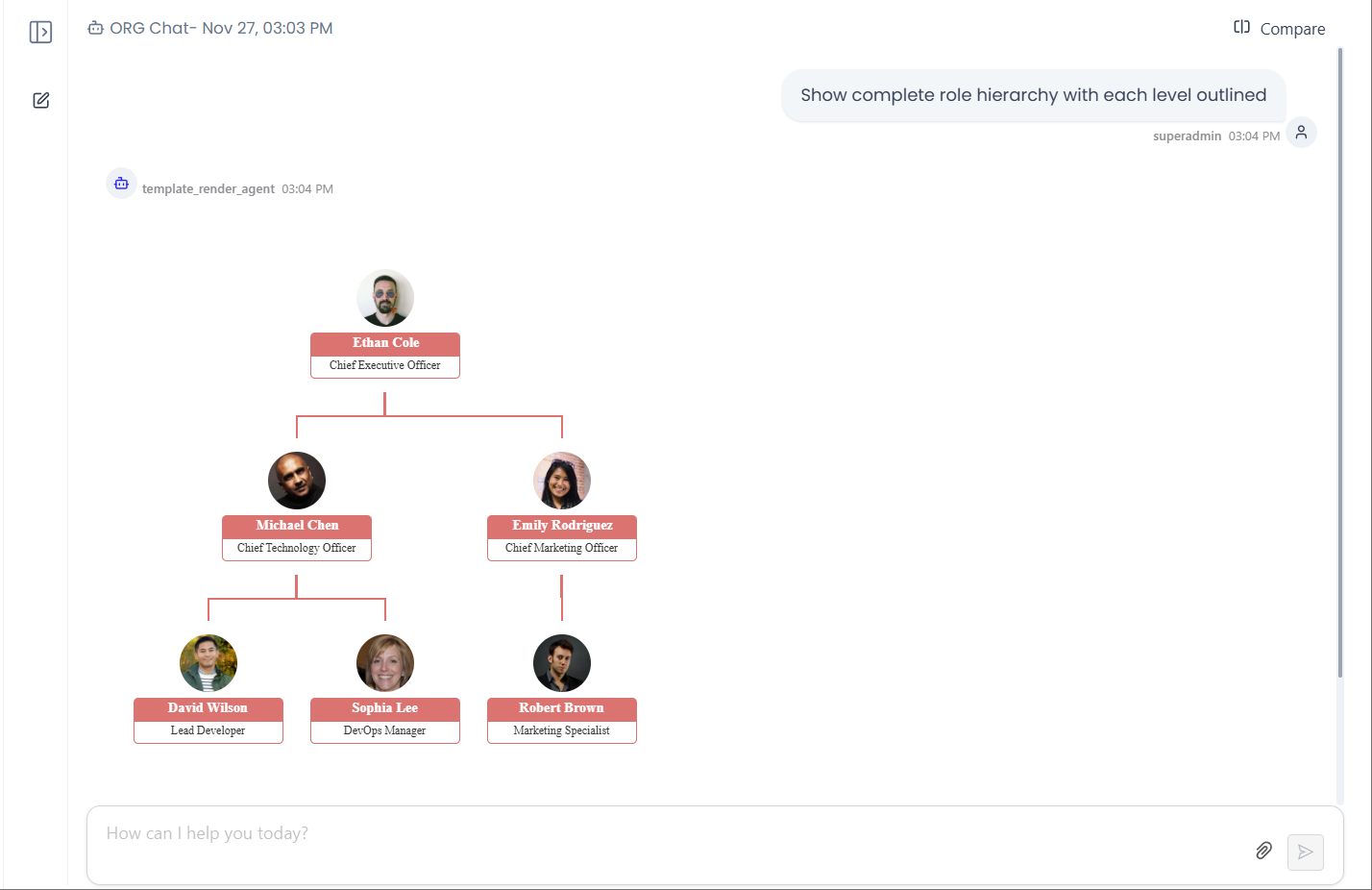
- Org Chart Template
- Card Template
Actions
- Open Select Templates dropdown
- Select a template (e.g., Table, Org Chart)
- Template loads into the Code Writer
- Modify the template if required
- Preview using the Visualizer
You can directly use predefined templates or customize them before rendering.
Option 2: Load Saved Custom Templates
Previously saved templates can be reused across workflows.
Actions
- Open Select Templates dropdown
- Select a template by name
- Template loads into the Code Writer
- Edit or reuse as-is
- Preview changes instantly
Best for reusable layouts across multiple automations.
Option 3: Create a New Template (From Scratch)
Use this option to write a completely custom template.
Actions
- Select Blank Template
- Write template code in the Code Writer
- Add dynamic placeholders using Jinja syntax
- Preview output in the Visualizer
Example
<h2>Invoice {{ invoice_id }}</h2>
<p>Date: {{ invoice_date }}</p>
<p>Total Amount: {{ total_amount }}</p>
Code Writer (Template + Default Data)
The Code Writer supports both template code and default JSON data to enhance development, preview, and fallback rendering.
Capabilities
- Paste existing template code
- Modify predefined or saved templates
- Write Jinja, HTML, CSS, or combined layouts
- Define dynamic placeholders for data binding
- Switch to JSON Data mode to provide default data
Default Data (JSON Mode)
The Code Writer includes a JSON Data tab / toggle.
When enabled:
- You can paste a JSON object representing default data
- This data is used to visualize Jinja templates in the Visualizer
- Default data acts as a fallback when no runtime data is provided
Example Default Data
{
  "invoice_id": "INV-001",
  "invoice_date": "2025-01-10",
  "total_amount": 2500.75,
  "customer_name": "Acme Corp"
}
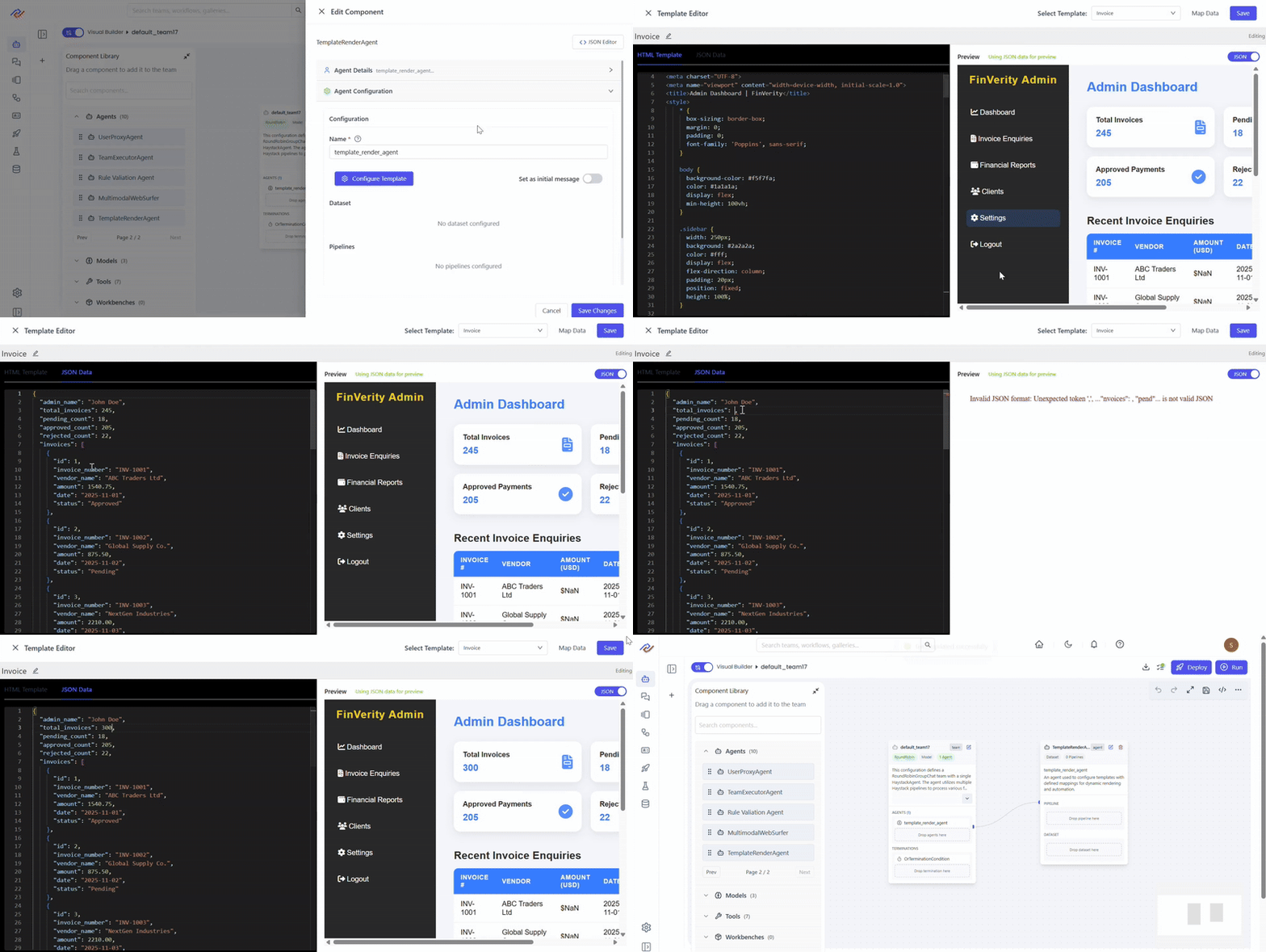
Visualizer (Live Preview)
The Visualizer provides real-time feedback on your template.
It:
- Renders templates in real time using default JSON data or mapped data
- Renders templates instantly as you edit
- Uses sample or mapped data for preview
- Highlights missing or unresolved variables
This helps validate template structure and output before execution.
Save Template
Templates can be saved for future reuse across workflows.
Actions
- Click Save Template
- Provide a Template Name
- Save the template
Once Saved
- The template appears in the Saved Templates dropdown
- It can be reused across agents and workflows
- It can be modified and re-saved at any time
Only the template name is required to save.
Template Validation & Feedback
While editing, TemplateRenderAgent provides:
- Syntax validation errors
- Missing variable warnings
- Default data rendering (if enabled)
This ensures templates are production-ready before data binding.
Configure Data Source (Optional)
TemplateRenderAgent supports two rendering modes.
Option 1: Pipeline + Dataset Mode (Primary)
Use this mode for dynamic, query-driven rendering.
Actions
- Select a Dataset
- Typically a Vector Store Dataset
- Configure a Pipeline
- Pipeline fetches documents and metadata
- Extracted data is prepared for template mapping
Flow
Dataset (Vector Store)
        ↓
Retriever / VectorQuerier Pipeline
        ↓
Template Variable Mapping
        ↓
Template Rendering
Option 2: Direct Input Mode (No Dataset, No Pipeline)
In this mode:
- No dataset is selected
- No pipeline is selected
- The agent receives a correctly structured input payload
TemplateRenderAgent renders the template using the provided input data.
This mode is useful for:
- One-off rendering
- Agent-to-agent handoffs
(Optional) Template Variable Mapping
When using datasets or pipelines, users can visually map:
- Jinja template variables
- → Vector store metadata fields
Example Mapping
{{ invoice_id }}      → metadata.invoice_id
{{ total_amount }}   → metadata.total_amount
{{ invoice_date }}   → metadata.invoice_date
(Optional) Caching Support
TemplateRenderAgent supports optional caching to improve performance.
When cache is enabled:
- Query results are stored after the first retrieval
- Subsequent identical or equivalent queries are served directly from cache
- Reduces latency and backend load
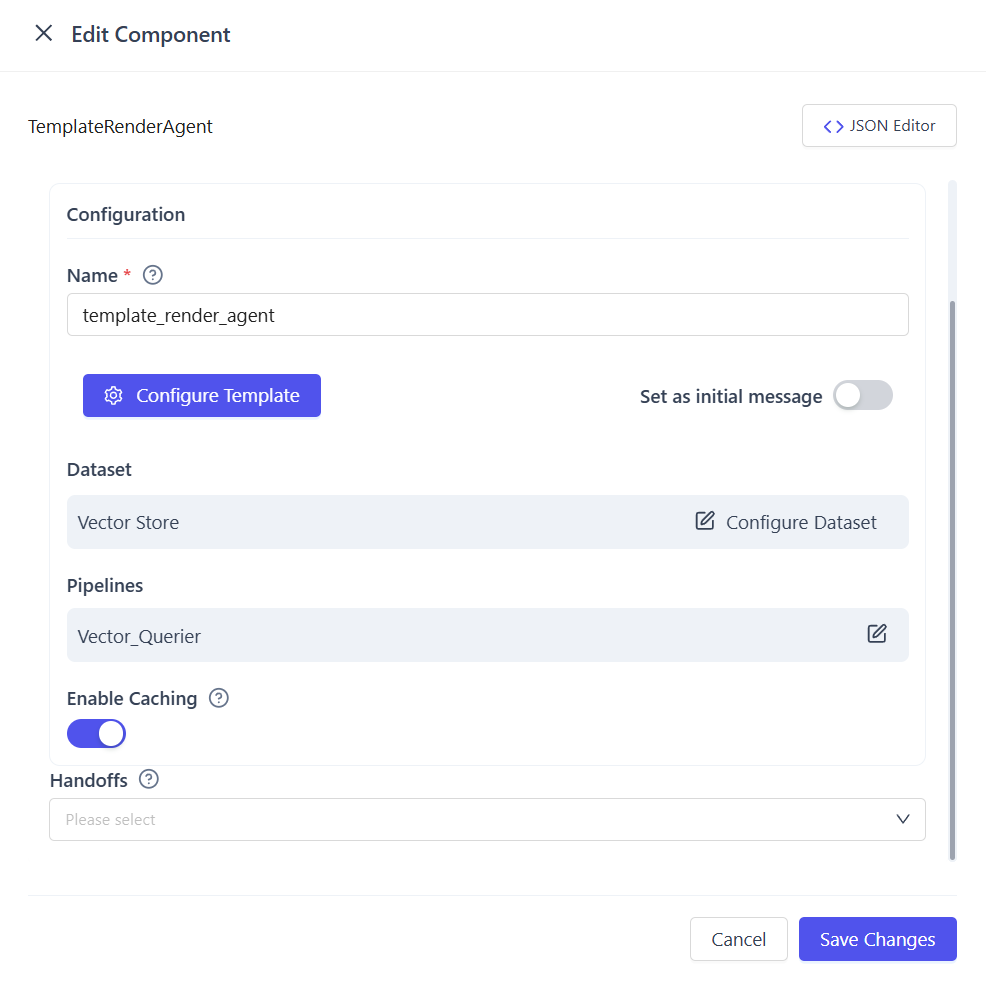
(Optional) Set as Initial Message
TemplateRenderAgent provides a configuration toggle named Set as Initial Message.
Purpose
Enable this option when the template should be rendered automatically on first load, without waiting for an external trigger or handoff.
Actions
- Open Agent Configuration
- Enable Set as Initial Message
When enabled:
- The agent runs immediately at startup
- Template rendering is triggered automatically
- Useful for dashboards, default views, and auto-generated previews
(Optional) Configure Startup Query
This step is required only if Set as Initial Message is enabled.
Purpose
Define the startup query or input payload used to execute the agent on initialization.
Actions
- Provide a Startup Query or input message
- Ensure the query or payload matches:
- Template variables, or
- Dataset / pipeline requirements (if configured)
Behavior
- The startup query is executed when the agent initializes
- Data is fetched or resolved
- The template is rendered using the startup input
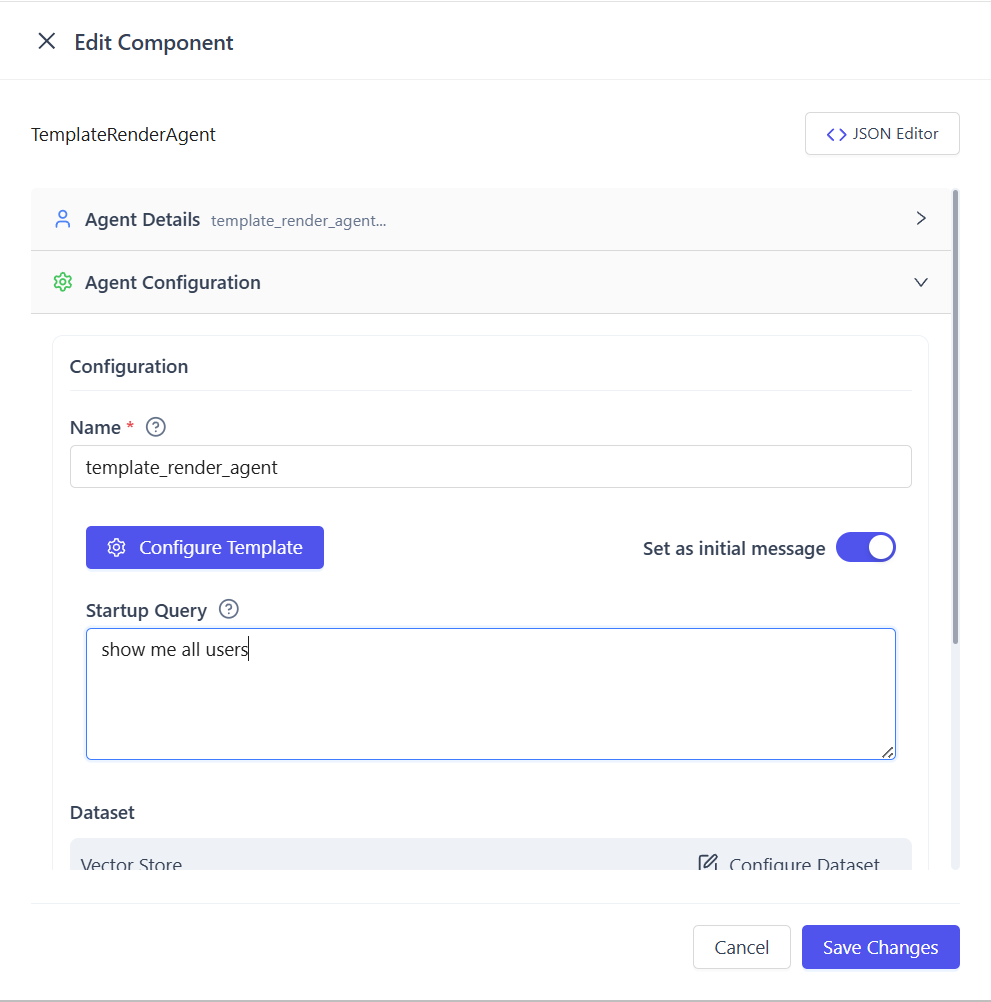
If Set as Initial Message is disabled, the startup query is ignored and the agent runs only when explicitly invoked.
Supported Use Cases
- Dynamic document generation
- Invoice and report rendering
- Email and notification templates
- UI-ready HTML generation
- Automated document formatting
When to Use TemplateRenderAgent
Use TemplateRenderAgent when structured or semi-structured data must be transformed into formatted output.
- Use pipeline + dataset mode for dynamic, query-driven rendering
- Use direct input mode for simple or external integrations
It is not intended for data ingestion or semantic indexing tasks.
Summary
TemplateRenderAgent is a specialized rendering agent that transforms structured or semi-structured data into formatted, UI-ready outputs using Jinja, HTML, and CSS templates. It provides a built-in code writer and live visualizer for authoring and previewing templates, supports default JSON data for visualization and fallback rendering when runtime data is missing, and allows templates to be saved, reused, and customized across workflows. The agent integrates with datasets and pipelines for dynamic data-driven rendering or can operate in direct input mode for agent-to-agent handoffs, making it ideal for automated document generation, reports, notifications, and presentation-focused outputs.